Flow: Field Value Strategy
Discover how to use Flow-based field value strategies to control which field values survive after merging duplicates. This tutorial covers creating a Flow to pick the best field values, prioritizing non-blank and most recent data, applying custom logic per field type, and validating results after the merge completes.
What You'll Learn
- Decide when a per-field Flow strategy is needed instead of a standard field value strategy
- Create a Flow with the InputRecords, optional MasterRecord, and FieldValue variables
- Match the FieldValue data type to the target field type (Text, Number, Date, Boolean)
- Add the Flow as an Overridden Field strategy in Auto-Merge Setup for one specific field
- Test the Flow on a sample duplicate group and verify the surviving field value
Key Takeaways
- Field Value Strategy: Flow runs per field, not per record — keep it focused and fast
- Use the optional MasterRecord variable when your logic depends on the chosen master
- Mismatched data types between FieldValue and the target field cause merges to fail silently
- Use Overridden Fields to apply Flow logic only where you need it; keep simple fields on standard strategies
Frequently Asked Questions
Is the MasterRecord variable required?
No, MasterRecord is optional. Add it only when your field logic needs to reference values from the chosen master — for example, picking the longest description across the master and the duplicates.
What if my FieldValue data type does not match the target field?
The assignment will fail at merge time and the field will retain the master record value. Always match the FieldValue type exactly to the target field — Text for text fields, Number for currency and number fields, Date for date fields, and so on.
Can I use the same Flow for multiple fields?
Yes, if the logic is identical and the data type matches. In practice, most teams build one focused Flow per field because the resolution rules differ.
How do I verify the Flow worked correctly after a merge?
Open the surviving record and check the field. The Duplicate Analytics dashboard also shows merge history, and you can query the merge audit log in Salesforce reports for bulk validation.
More Videos

Flow Strategy for Auto-Merge
See how to build a custom Flow strategy that controls master record selection and automatic merging of duplicate records. The video explains when to use Flow strategies, walks through building a Flow for master record selection, configuring automatic merge triggers, and handling edge cases and error scenarios.
Auto-Select for Merge
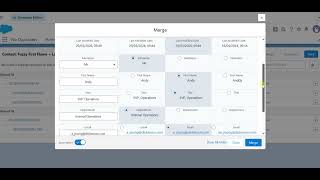
Learn how Auto-Select pre-fills the merge modal with recommended field values based on your configured merge strategies. See how the modal opens ready to merge, how to review and adjust recommendations, and how Auto-Select connects to your Auto-Merge rules.

No Duplicates: Application Overview
Complete walkthrough of No Duplicates for Salesforce. Learn how to install and configure the app, create matching rules for Accounts, Contacts, and Leads, run duplicate scans, and review results. The video also covers setting up auto-merge strategies and scheduling recurring duplicate checks to keep your data clean automatically.