How to Merge Duplicate Records in Salesforce (Step-by-Step Guide)

Duplicate records are one of the most common data quality problems in Salesforce. Sales reps waste time working the same lead twice, marketing sends duplicate emails that hurt deliverability, and reports show inflated pipeline numbers that nobody trusts.
According to Gartner, organizations believe poor data quality is responsible for an average of $12.9 million in losses per year. And CRM data decays at roughly 30% annually — meaning if you're not actively deduplicating, the problem is growing every quarter.
Short answer: open the record → click "View Duplicates" in the Potential Duplicates component → select up to 3 records → choose the master record and field values → click "Merge." This works for accounts, contacts, and leads in Lightning Experience. For bulk merge at scale, you need a third-party tool.
This guide covers everything you need to know about how to merge duplicates in Salesforce: native merge for accounts, contacts, and leads (step by step), the limitations you'll hit, and how to merge records at scale when manual merging is no longer practical.
In this article:
- Prerequisites Before You Merge
- How to Merge Duplicate Accounts
- How to Merge Duplicate Contacts
- How to Merge Duplicate Leads
- Limitations of Native Salesforce Merge
- How to Merge Duplicates at Scale
- Key Takeaways
- FAQ
Prerequisites Before You Merge
Before you start merging records, make sure you have the following in place:
Permissions. You need the "Delete" permission on the object you're merging (Accounts, Contacts, or Leads). Some organizations require "Modify All Data" for certain objects. Check with your Salesforce admin if you're unsure.
Backup your data. Merging is permanent — once you merge two records, you cannot undo it. Export the records you plan to merge before you start, either through Salesforce's native Data Export or a backup tool.
Set up Duplicate Rules and Matching Rules. If you want Salesforce to find duplicates for you (rather than searching manually), you need active Duplicate Rules and Matching Rules. Salesforce ships with standard rules for Accounts, Contacts, and Leads — activate them if you haven't already.
Tip: Need more advanced matching beyond Salesforce standard rules? See how No Duplicates matching rules let you define custom fuzzy matching, cross-object detection, and scheduled scans.
How to Merge Duplicate Accounts in Salesforce
Lightning Experience
-
Navigate to the Account you suspect has duplicates. Open the record.
-
Look for the "Potential Duplicates" component on the record page. If Duplicate Rules are active, Salesforce will show a card listing possible duplicate accounts.
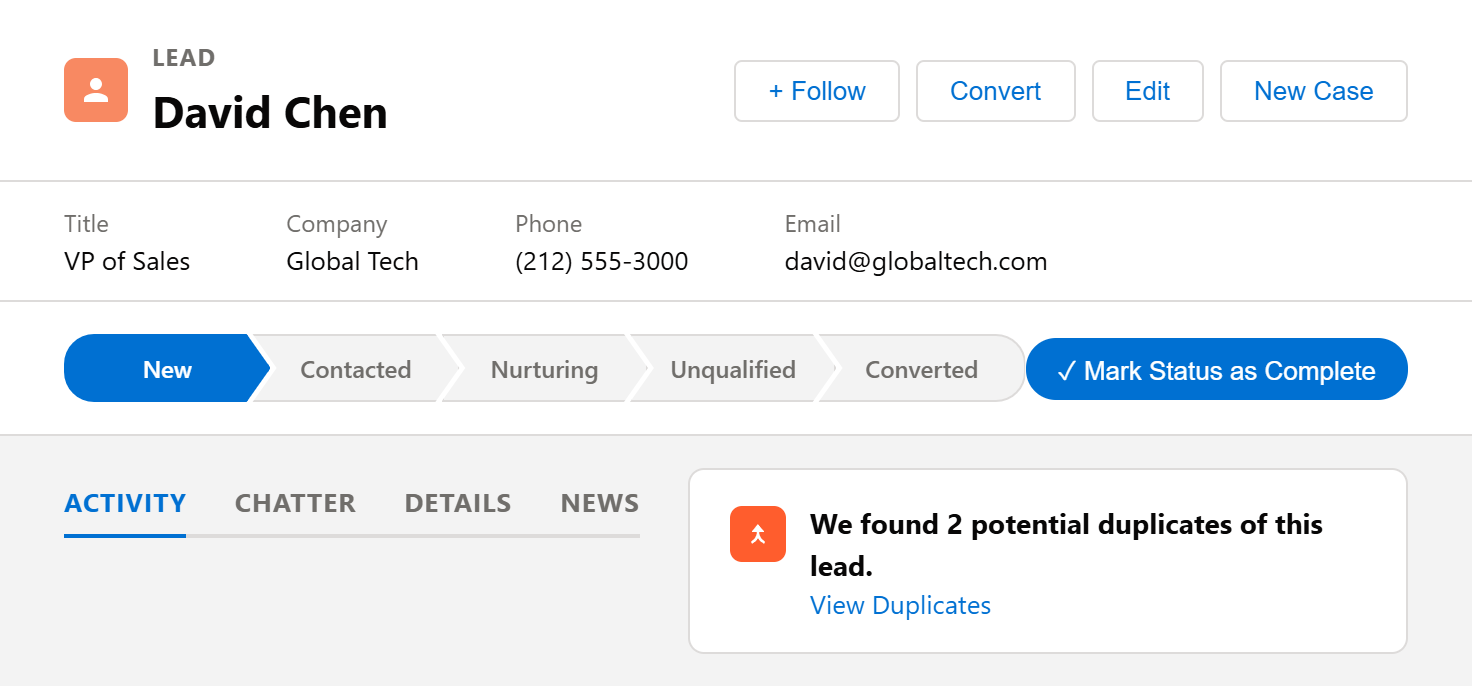
Note: If you don't see the Potential Duplicates component, your admin needs to add it to the Account record page via the Lightning App Builder.
-
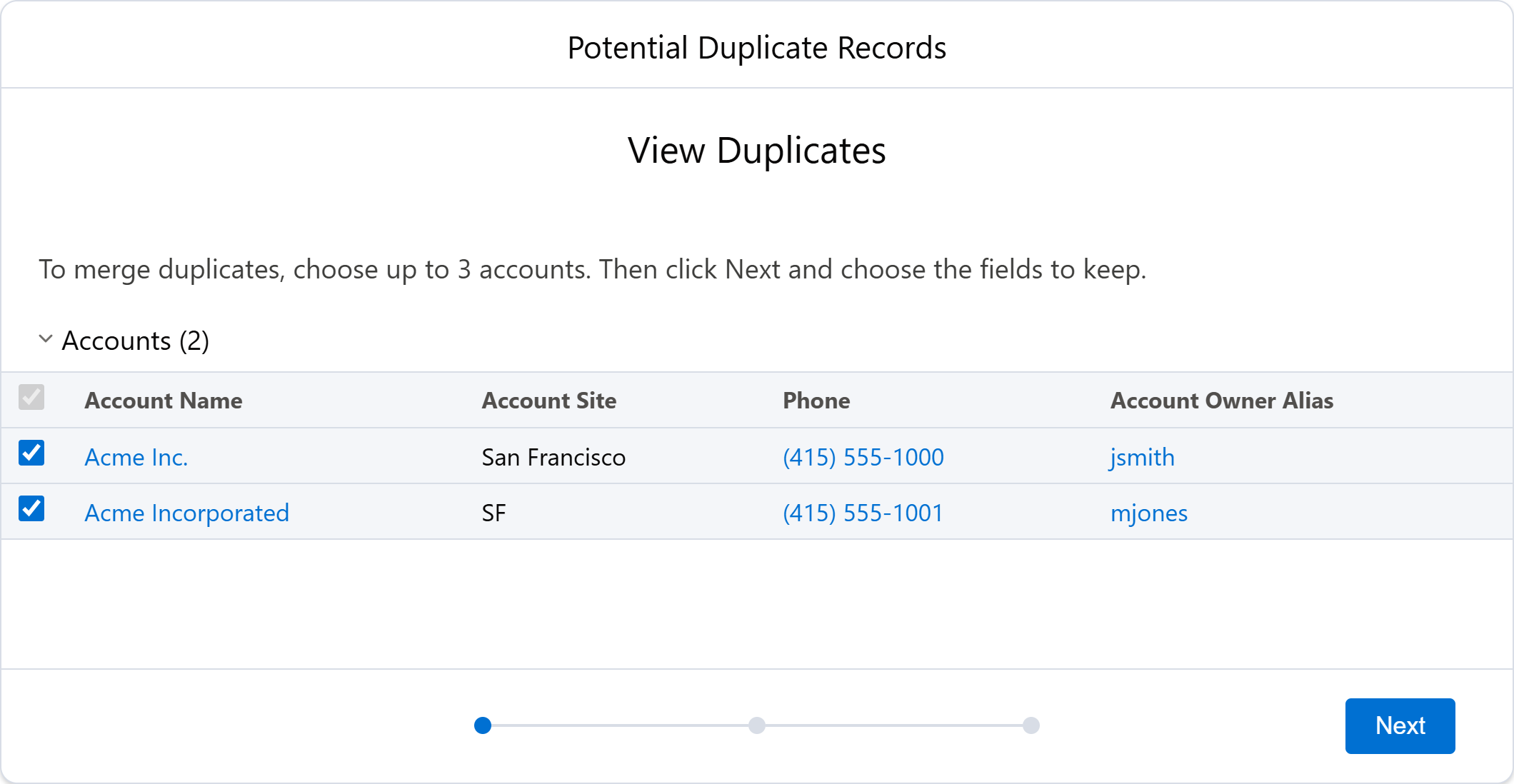
Click "View Duplicates." Salesforce shows a list of potential duplicate accounts.
-
Select up to two accounts to merge with the current record (maximum three records total).
-
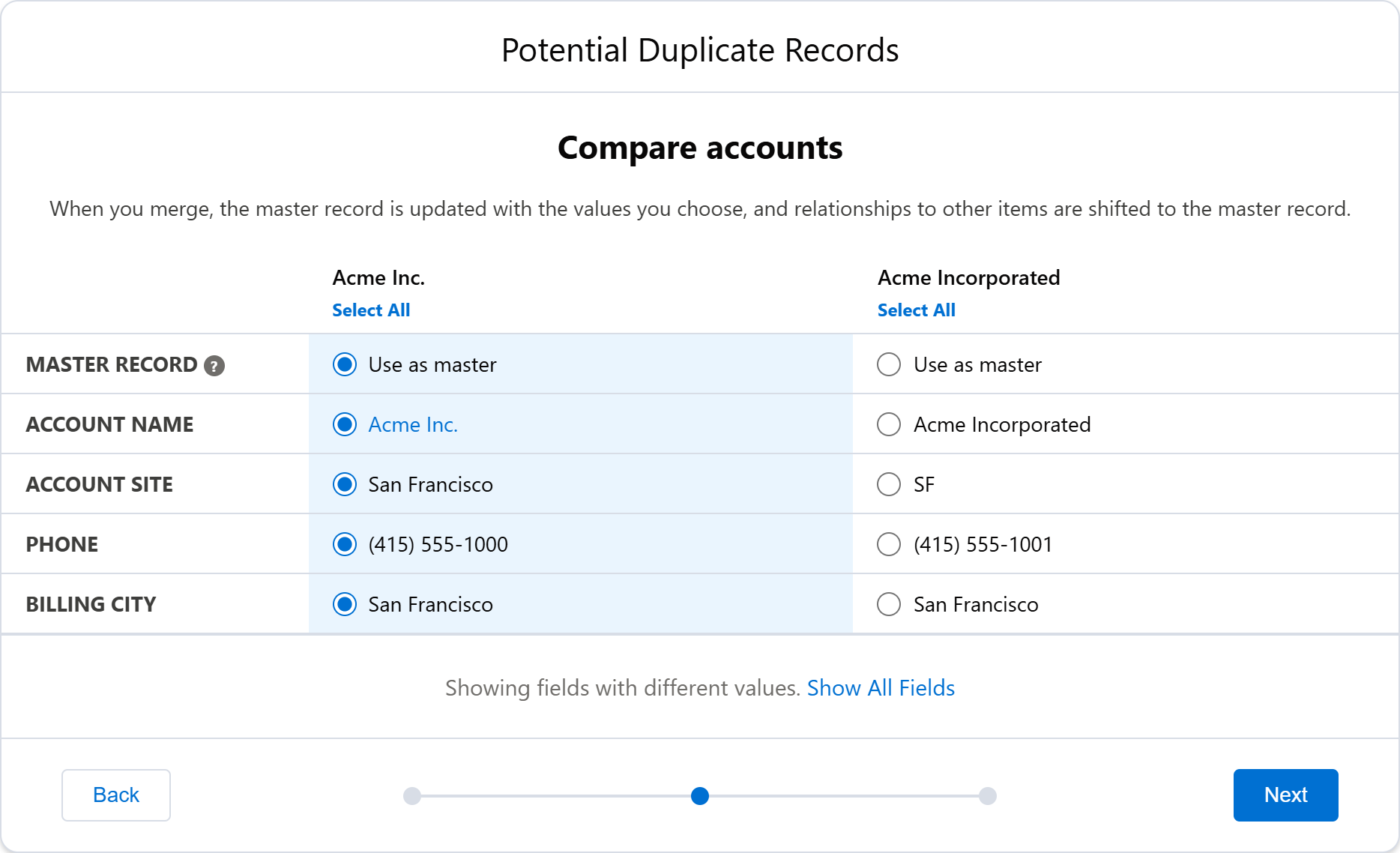
Choose the Master Record. In Lightning, the record you navigated to is pre-selected as the master. In Classic, Salesforce selects the oldest record by default. You can change this selection. The master record's ID is preserved after the merge.
-
Compare field values. Salesforce displays a side-by-side comparison of all fields. For each field where values differ, select the value you want to keep. By default, the master record's values are pre-selected.
- Click "Merge." Confirm the action. Salesforce merges the records — all related records (Opportunities, Contacts, Cases, Activities) move to the master record, the non-master records go to the Recycle Bin (recoverable for 15 days), and the master record retains its original Record ID.
Salesforce Classic
-
Click the "Accounts" tab and select "Merge Accounts" from the Tools section (at the bottom of the Accounts home page).
-
Search for the account name. Salesforce returns matching accounts.
-
Select up to three accounts and click "Next."
-
Choose the Master Record and select the field values to keep from each record.
-
Click "Merge."
Key Differences: Lightning vs. Classic
| Feature | Lightning Experience | Salesforce Classic |
|---|---|---|
| How to access | "Potential Duplicates" component on the record page, or global search | "Merge Accounts" tool on the Accounts tab home page |
| Duplicate detection | Automatic via Duplicate Rules | Manual search only |
| Max records per merge | 3 | 3 |
| Person Accounts | Supported | Supported |
How to Merge Duplicate Contacts in Salesforce
Lightning Experience
-
Navigate to the Contact you want to keep as the master.
-
Click "View Duplicates" in the Potential Duplicates component.
-
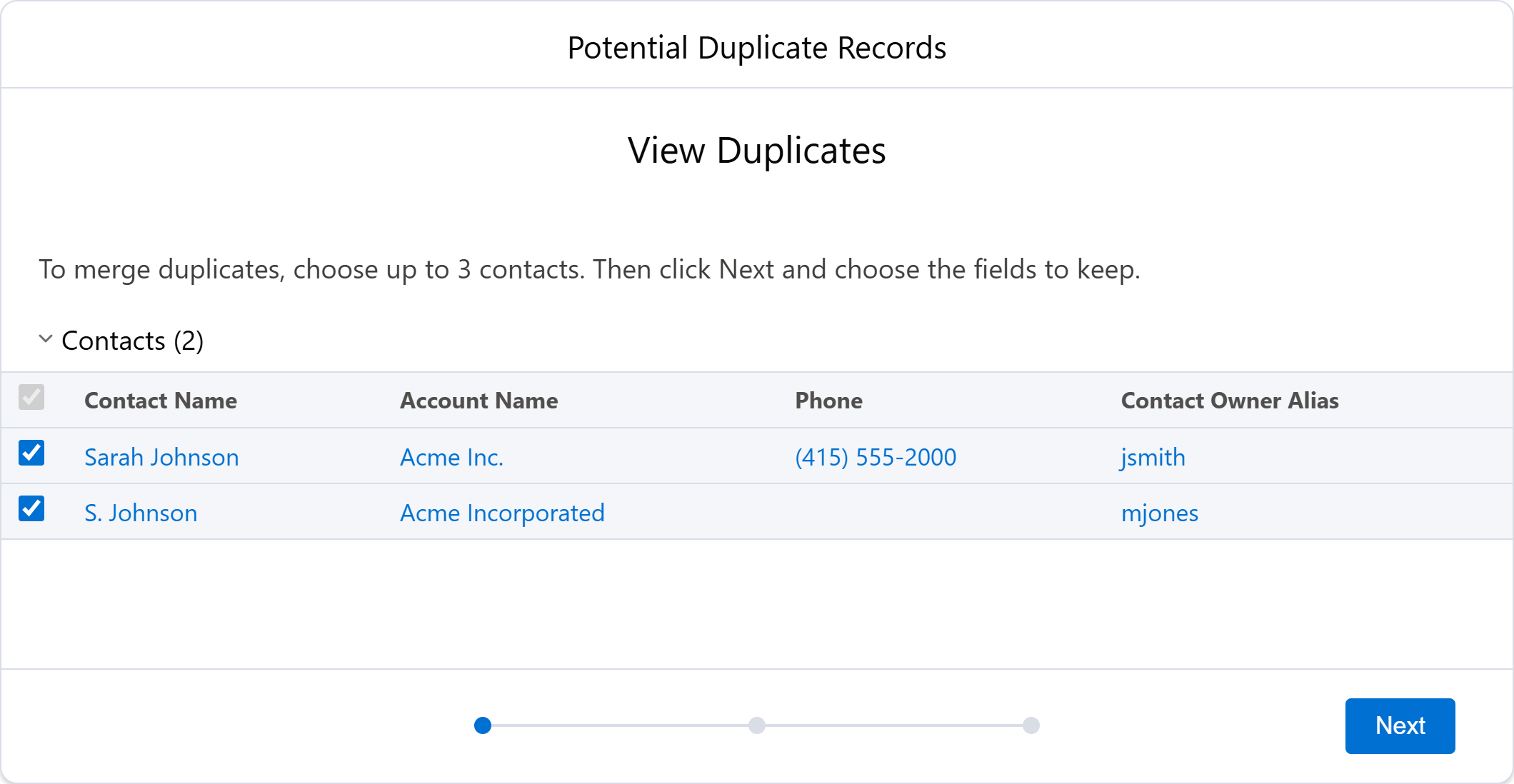
Select up to two duplicate contacts. You can merge contacts across different accounts — Salesforce will move all relationships to the master record's account.
-
Choose the Master Record.
-
Compare and select field values. Review each field and pick the value you want to keep.
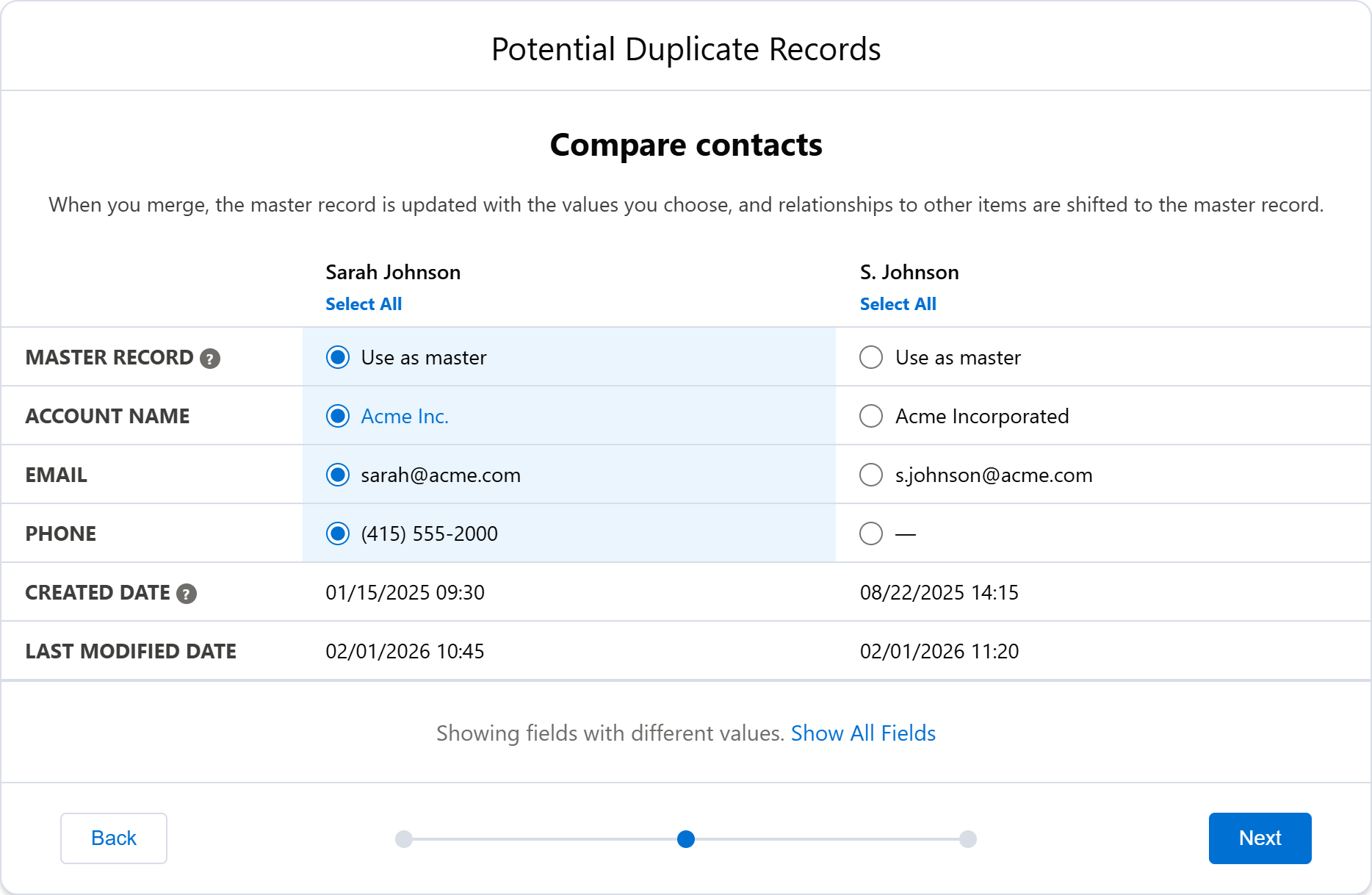
- Click "Merge" to complete the process.
Salesforce Classic
- Navigate to the Account that owns the contacts.
- Click "Merge Contacts" in the Contact related list.
- Select up to three contacts and click "Next."
- Choose the master record and field values.
- Click "Merge."
Good to know: In Classic, you can only merge contacts that belong to the same account. Lightning lets you merge contacts across different accounts.
How to Merge Duplicate Leads in Salesforce
Lightning Experience
-
Navigate to the Lead you want to keep.
-
Click "View Duplicates" in the Potential Duplicates component.
-
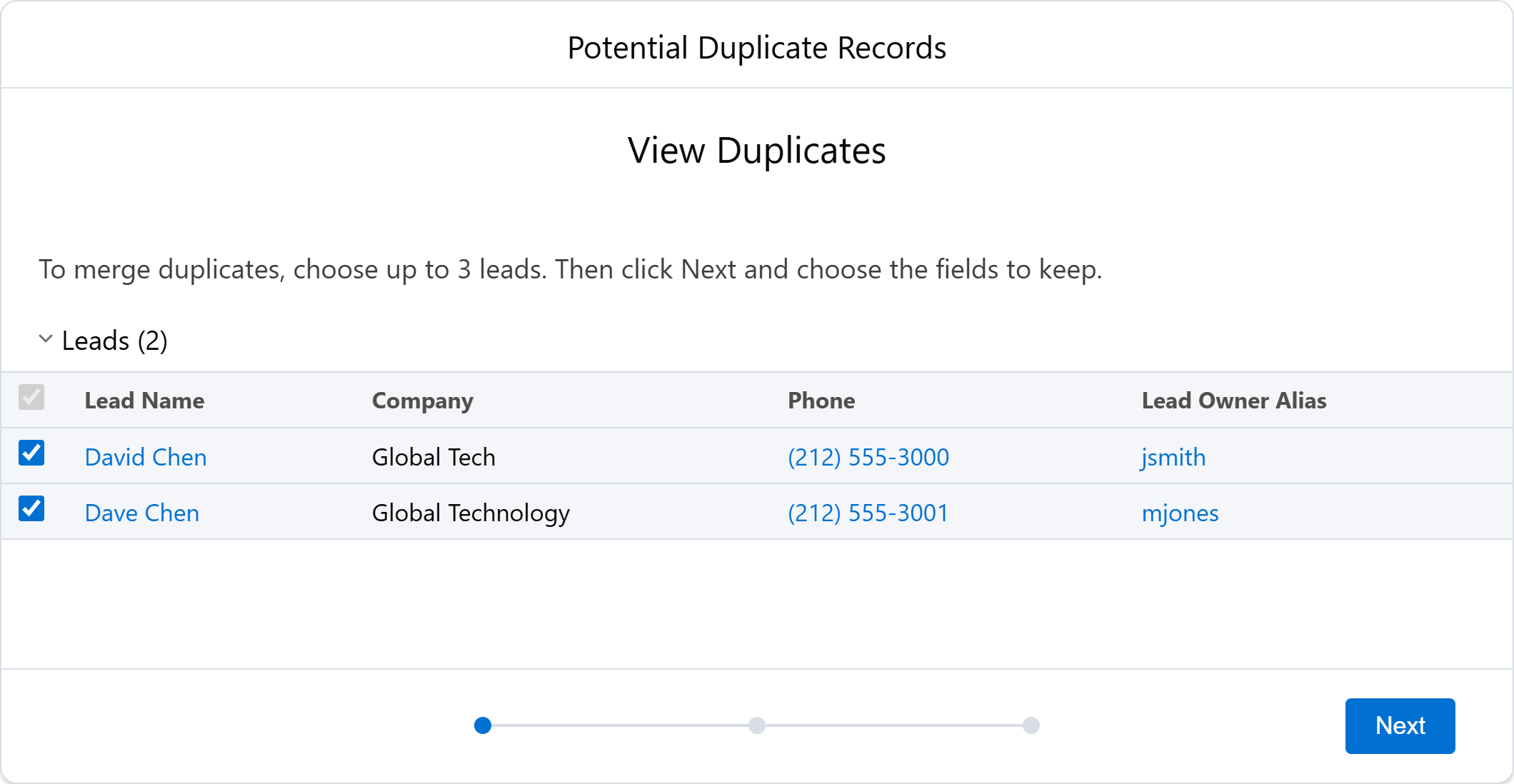
Select up to two duplicate leads.
-
Choose the Master Record.
-
Review and select field values for each field.
-
Click "Merge."
Salesforce Classic
- Click the "Leads" tab.
- Select "Merge Leads" from the Tools section.
- Search for leads by name or company.
- Select up to three leads and click "Next."
- Choose the master record and field values.
- Click "Merge."
What Happens to Converted Leads?
You cannot merge leads that have already been converted. If you need to deduplicate between a Lead and an existing Contact, native Salesforce doesn't support cross-object merge — you need to either convert the lead manually or use a third-party tool.
A Note on Merging via Apex
Developers can also merge records programmatically using the Database.merge() method in Apex. This is useful for building custom merge logic, but it still has the same 3-record limit per merge call and requires writing and maintaining code. For most admins, the UI-based approach or an AppExchange tool is more practical.
Limitations of Native Salesforce Merge
Salesforce's native merge works fine for one-off cleanups, but it has significant limitations that become painful at scale:
1. Maximum 3 Records Per Merge
You can only merge three records at a time. If you have 50 duplicate accounts for the same company, you need to repeat the merge process 25 times — manually, one group at a time.
2. No Bulk or Mass Merge
There is no way to merge duplicates in bulk using native Salesforce. Every merge is a manual, record-by-record operation. For organizations with thousands of duplicates, this can take weeks of manual work.
3. No Automation
Salesforce has no native auto-merge capability. You can't set rules like "automatically merge duplicates with matching email addresses" and let the system handle it. Every merge requires a human to review and click "Merge."
There is also no scheduling — you can't say "run a dedup scan every Monday and merge exact matches automatically."
4. No Cross-Object Merge
Native merge only works within the same object: accounts with accounts, contacts with contacts, leads with leads. If a person exists as both a Lead and a Contact, Salesforce can't merge them — you need to convert the lead first, then merge the resulting contacts.
5. Manual Field Selection Every Time
While native merge does show a side-by-side field comparison (which is useful), you must manually select field values for every single merge. There are no reusable field strategies — you can't say "always keep the most recently modified value" or "prefer non-blank values" and apply it across all your merges.
6. No Detailed Merge Reports
After a merge, there's no built-in report showing what changed — which field values were kept, which were discarded, and what related records were moved. If something looks wrong weeks later, you have no audit trail to reference.
For a deeper look at native Salesforce limitations, see our article: Why Salesforce Duplicate Management is Not Enough.
How to Merge Duplicate Records at Scale with No Duplicates
When manual merging is no longer practical — whether you have hundreds or hundreds of thousands of duplicates — No Duplicates automates the entire process while keeping everything inside Salesforce.
Bulk Merge
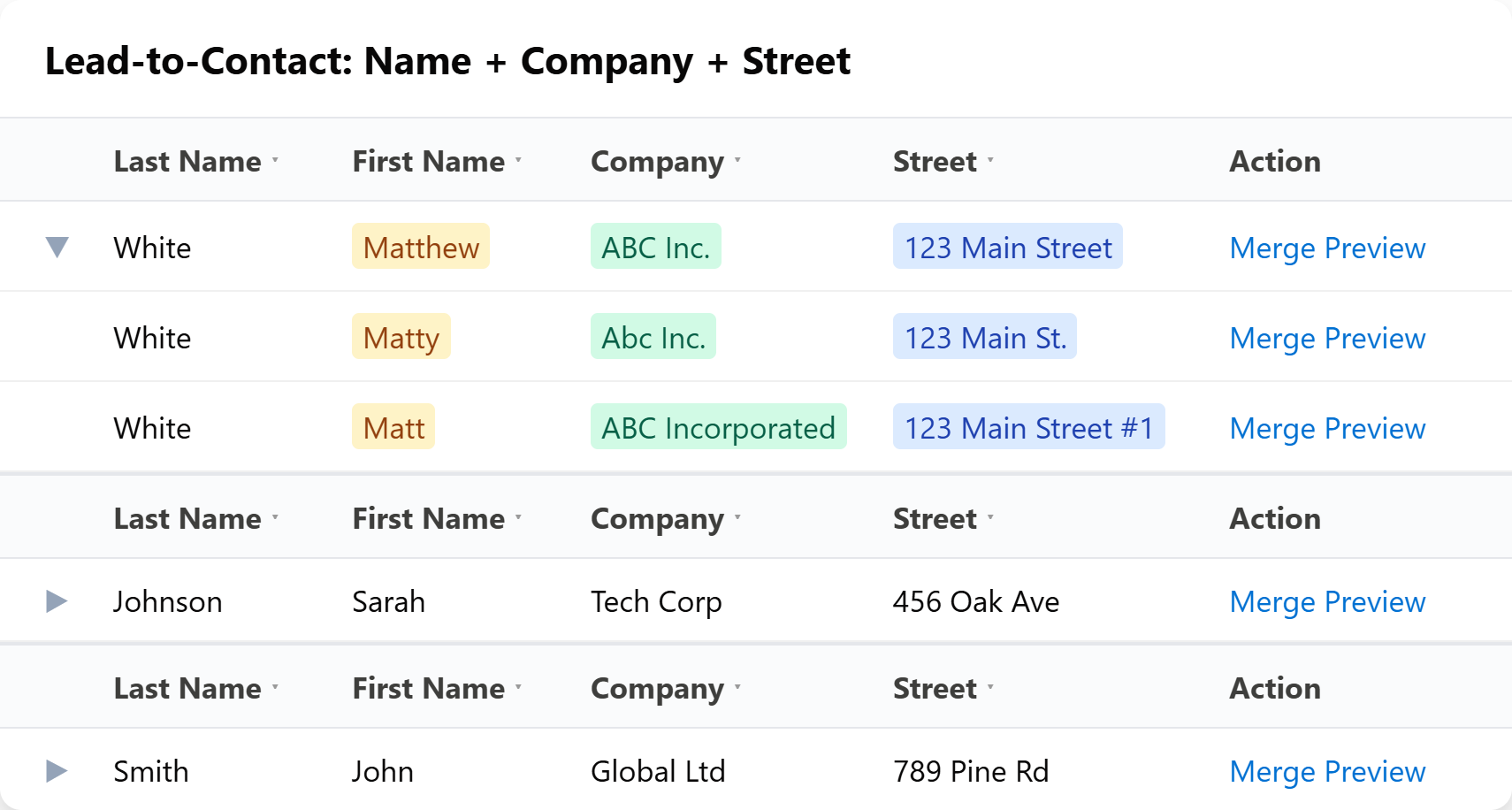
Instead of merging three records at a time, you run a matching rule, review the grouped results, and merge all duplicates in one operation — manually or with auto-merge.
Auto-Merge with Field Strategies
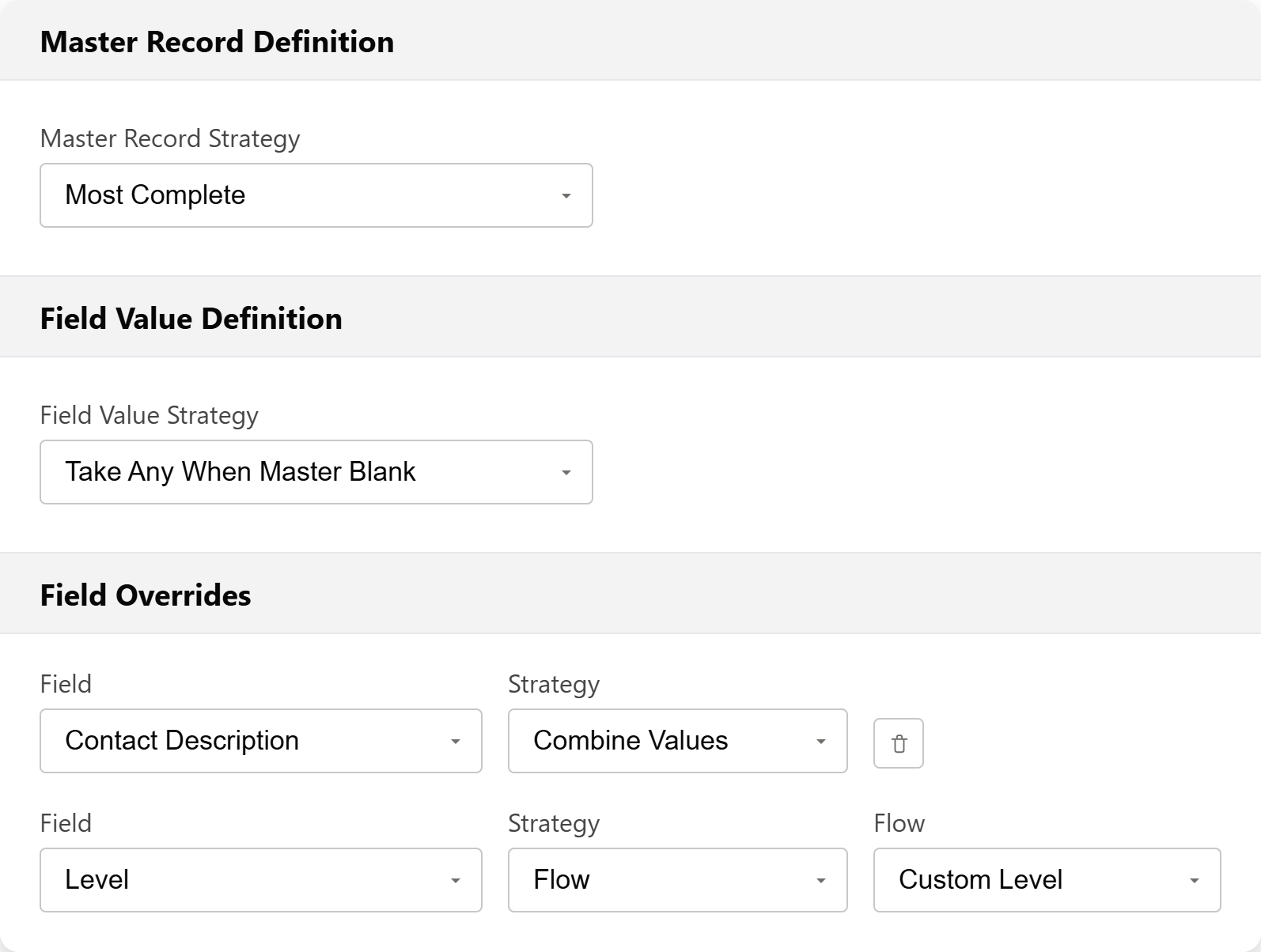
Define a master record strategy to determine which record survives, and field-level strategies to control how each field is populated. No Duplicates auto-merges 10,000+ records per hour — no manual review needed.
Master record strategies: Most Complete (most populated fields), Most Attachments, Newest/Oldest Date, Maximum Number, Specified Field Values, or a custom Salesforce Flow.
Field value strategies: Take From Master, Take Any When Master Blank, Most Common, Newest/Oldest Last Modified, Longest/Shortest Text, Combine Values (joins multi-select values), True/False Over False/True, Maximum/Minimum Number, or a custom Flow.
Need something beyond the built-in strategies? Use a custom Salesforce Flow as both your master record strategy and field value strategy. This gives you full control — which records win, which field values survive, what happens before and after the merge — all using standard Flow Builder, no code required.
No more clicking through field comparisons for every single merge.
Cross-Object: Lead to Contact Conversion
No Duplicates can match Leads against Contacts and automatically convert matching leads. This is something native Salesforce simply cannot do — there's no native way to detect that a Lead "John Smith" already exists as a Contact and auto-convert it.
Merge Preview
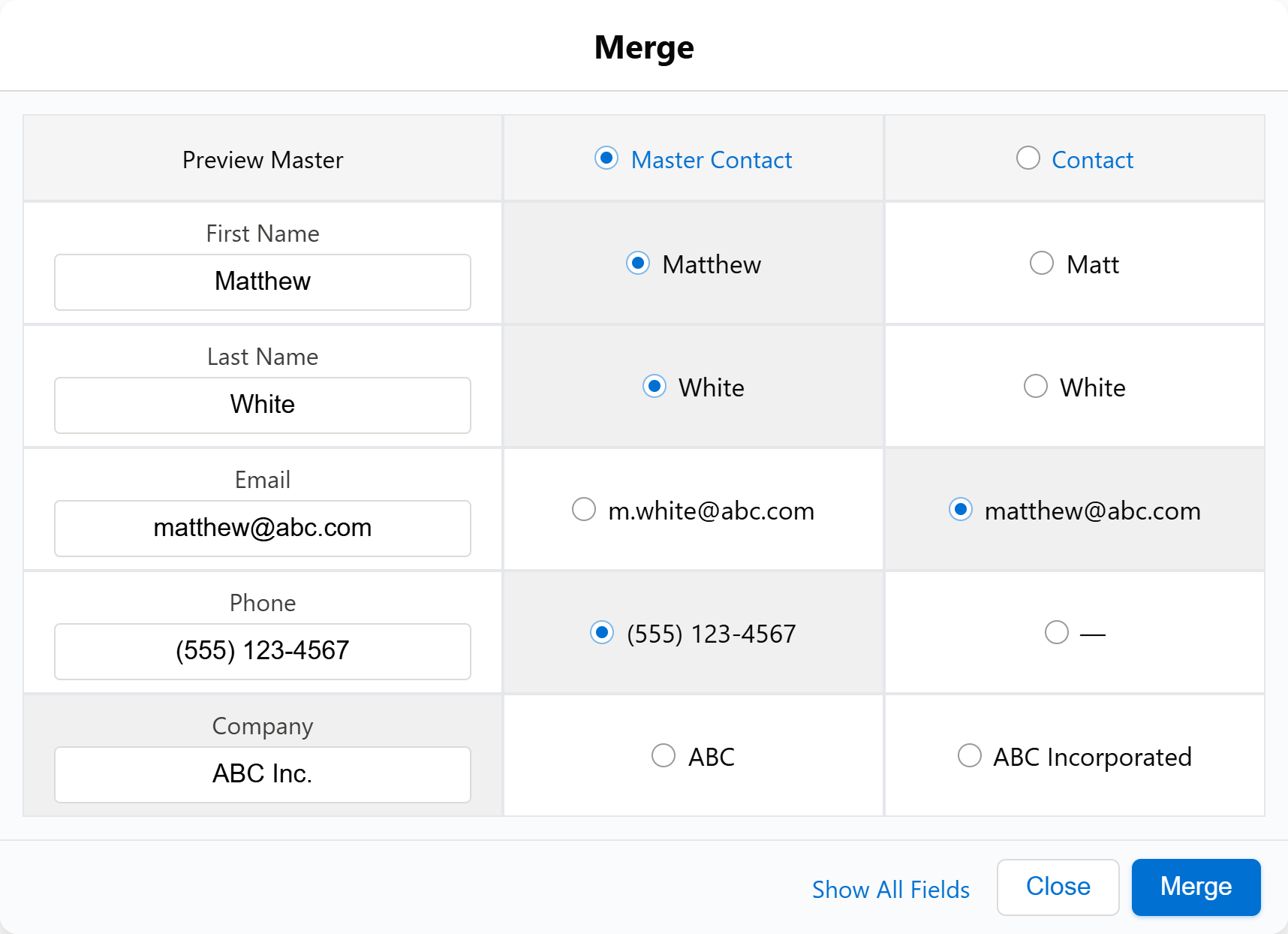
Before committing to any merge, preview the results. The merge preview shows only fields that have different values by default (cutting through the noise), with a "Show All Fields" toggle for a complete picture.
Scheduling
Set up your matching rules to run on a schedule — daily, weekly, or at custom intervals. Combine scheduling with auto-merge, and your Salesforce org stays clean automatically without anyone lifting a finger.
Reports with Before/After Audit Trail
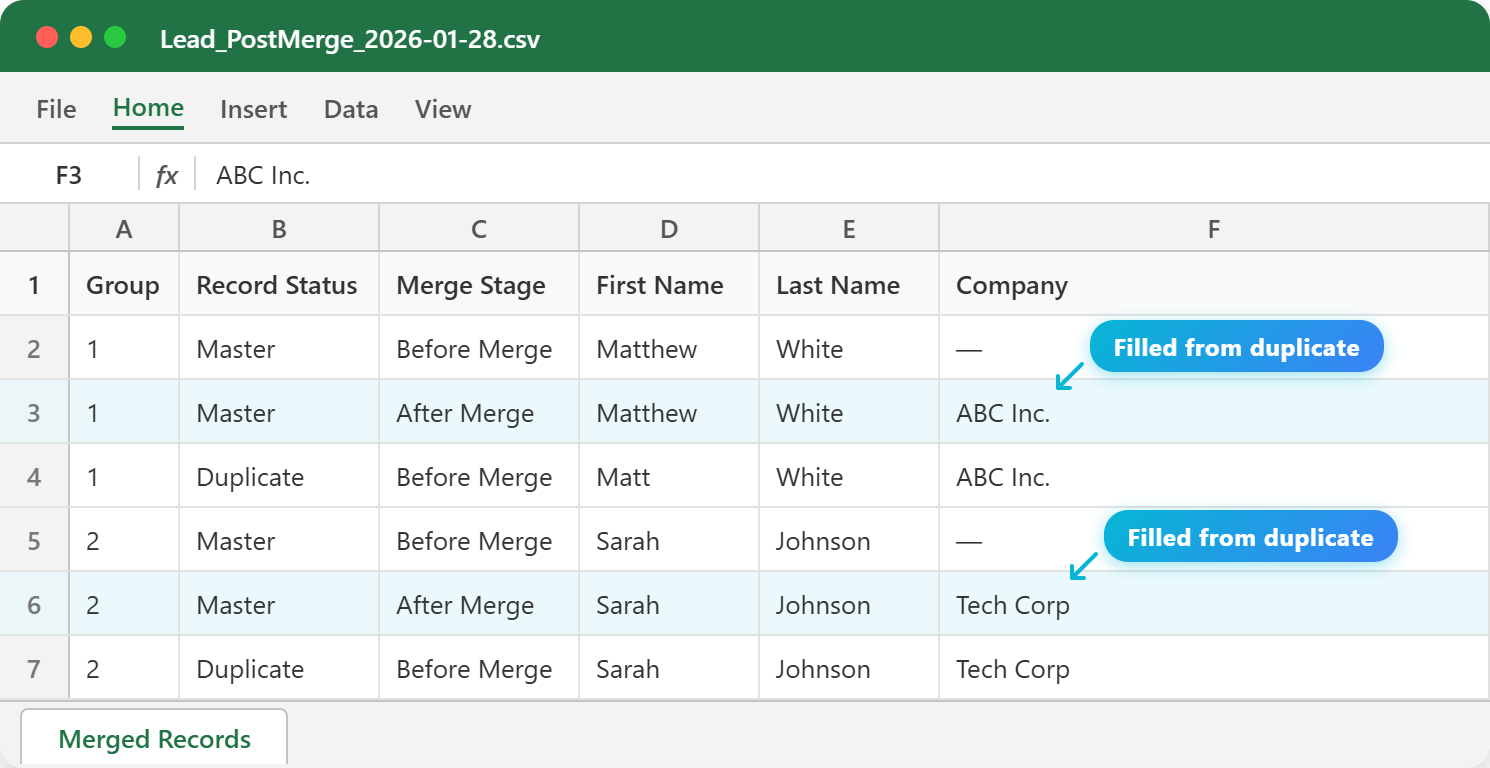
After every merge, No Duplicates generates a detailed report showing exactly what happened: which records were merged, which field values were kept or discarded, and which related records were moved. This gives you a full audit trail — essential for compliance and troubleshooting.
Want to automate merging at scale? No Duplicates is free on sandboxes with no restrictions — test auto-merge, bulk operations, and 24+ field strategies with your real data.
For a detailed comparison with other deduplication tools, see: Best Salesforce Deduplication Tools in 2026 [Compared].
Key Takeaways
- Native Salesforce merge works for accounts, contacts, and leads — but only 3 records at a time, with no bulk option, no automation, and no cross-object support.
- The merge process is the same across objects: find duplicates → select records → choose master → pick field values → merge. Related records automatically move to the master.
- Always back up first. Merging cannot be fully undone. Non-master records go to the Recycle Bin for 15 days, but restoring them doesn't reverse the merge.
- At scale, native merge breaks down. Thousands of duplicates require a tool with bulk merge, auto-merge rules, and field strategies — like No Duplicates.
- Set up Duplicate Rules proactively. Prevention is cheaper than cleanup. Activate Salesforce's built-in matching rules so duplicates are flagged before they multiply.
Frequently Asked Questions
How many records can you merge at once in Salesforce?
Native Salesforce limits you to 3 records per merge — this applies to accounts, contacts, and leads equally. The limit also applies to the Database.merge() Apex method. If you have a cluster of 10 duplicates, you'd need to run the merge wizard at least 4 times. No Duplicates removes this limit entirely — you can merge groups of any size in a single operation.
Can you merge records across different objects in Salesforce?
No — native merge is same-object only. The most common pain point: a person exists as both a Lead and a Contact. Salesforce can't merge them because they're different objects. The workaround is a two-step process: convert the Lead to a Contact (which creates a new Contact), then merge the two Contacts. No Duplicates automates this with cross-object matching and auto-conversion.
What happens to related records after a merge?
All child records — Opportunities, Cases, Activities, Attachments, Notes, Content Documents, Campaign Members — are reparented to the master record. The non-master records are soft-deleted (moved to the Recycle Bin for 15 days). Important: Chatter posts and feed items from non-master records are also moved. However, some objects with polymorphic lookups may require manual cleanup.
How to merge more than 3 duplicates in Salesforce?
You have to merge 3 at a time, sequentially. For 10 duplicates: merge 3 → merge the result with 2 more → repeat until one record remains. That's at least 4 rounds of clicking through the merge wizard and selecting fields each time. For anything beyond a handful, this quickly becomes impractical — which is why bulk merge tools exist.
Can you bulk merge duplicates in Salesforce?
No. There is no native bulk merge — not in the UI, not via Data Loader, not via Apex batch. Every merge requires manual field selection in the wizard. The only way to bulk merge is through a third-party AppExchange tool. No Duplicates handles this with configurable auto-merge rules that process thousands of records without manual intervention.
What permissions do you need to merge records in Salesforce?
At minimum, you need "Delete" on the object (Accounts, Contacts, or Leads) — because merging deletes the non-master records. If your org uses record-level security (OWD = Private), you also need edit access to all records in the merge group. For Person Accounts, you need Delete on both Accounts and Contacts. Admins with "Modify All Data" always have merge access.
Can you undo a merge in Salesforce?
No reliable undo exists. The non-master records land in the Recycle Bin (15 days), and you can restore them — but they come back empty. Related records stay on the master, field values that were overwritten are gone, and the record IDs of non-master records may already be referenced elsewhere. Best practice: always export your data before merging. For critical merges, consider using a sandbox test first.
Does merging duplicates affect reports and dashboards?
Yes — reports improve after deduplication. Inflated pipeline numbers drop to accurate figures, activity counts per account become reliable, and marketing attribution stops double-counting. The one thing to watch: if you had reports filtering by specific Record IDs of non-master records, those filters will break since those records no longer exist.
Disclosure: This article is published by the team behind No Duplicates, a native Salesforce deduplication app. All information about Salesforce's native merge process is sourced from official Salesforce documentation. We encourage you to verify directly with Salesforce for the most current details.
Accurate as of February 2026.