Merge And Convert
Once all steps in the Matching Rules wizard are completed (Matching Fields and optionally Matching Filters), the matching rule is ready to run. This page explains how to execute matching rules and merge or convert duplicate records.
For automatic merging without manual review, see Auto Merge configuration.
Running a Matching Rule
- Click the "Run" button to start processing records
- During processing, you will see the current processing status
- When processing is complete, click the "Show Results" button
- You will be navigated to the results page showing detected duplicates
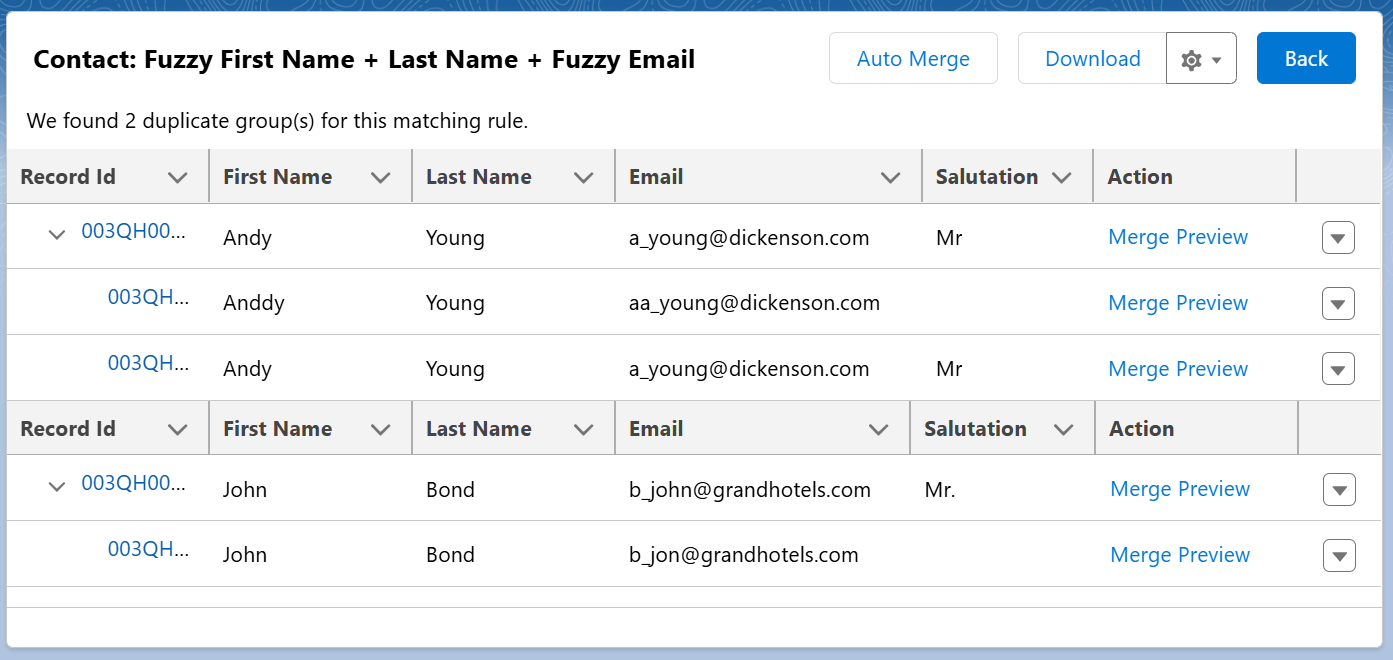
Reviewing Merge Details
To review the full list of fields before merging:
- Click the "Merge Preview" link
- A merge pop-up modal will open
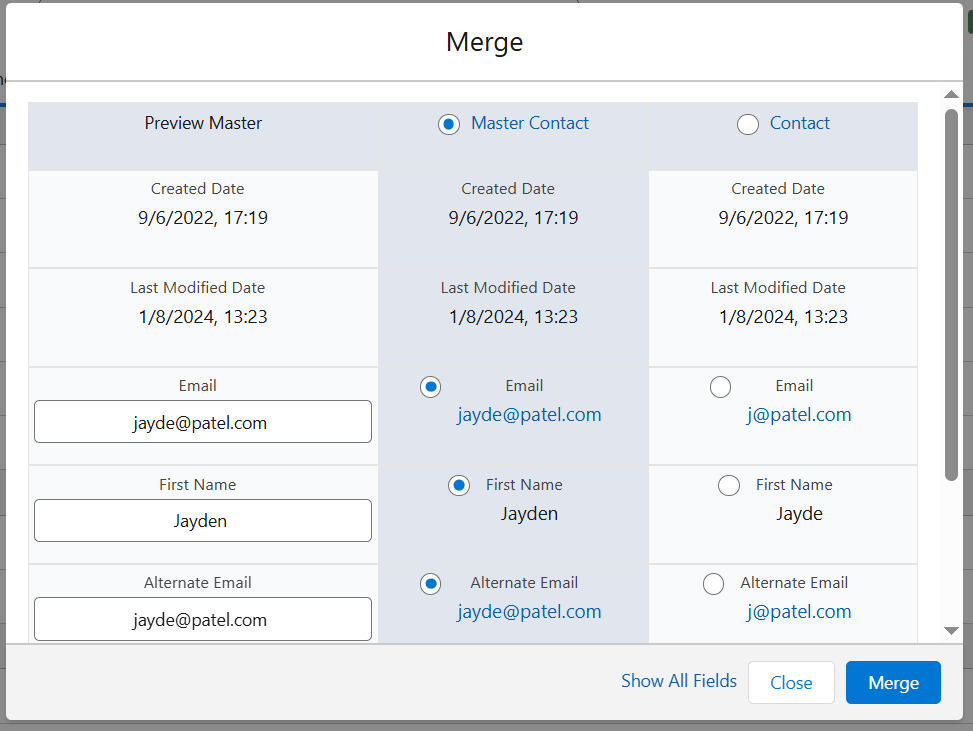
- The modal displays fields from page layouts of selected records
- By default, it shows only fields that have different values
- To show all fields, click the "Show All Fields" link
tip
Use Auto-Select to automatically pre-fill field values based on your configured merge strategies — so the modal arrives ready to merge.
Merge Operation
When merging records for a single object:
- All related items are automatically moved to the master record
- This includes related records, attachments, notes, activities, and other related data
- The duplicate records are merged into the master record
Convert Operation
The Convert option is available only for Lead to Contact matching scenarios.
- When converting leads to contacts, the same merge logic applies
- All related items from the lead are transferred to the contact record
note
The merge operation for a single object moves all related items to the master record. The same logic applies for the convert operation.
Related Topics
- Merge Requests – Defer a merge to the For Review tab and complete it later
- Auto Merge – Configure automatic merging with various strategies
- Auto Lead Conversion – Automatically convert leads to contacts
- How to Merge Duplicate Records in Salesforce – Step-by-step guide to native Salesforce merge and bulk merge at scale