Matching Rules
Matching Rules define how the system identifies duplicate records. This page explains how to access, use, and create matching rules.
Accessing Matching Rules
Lightning Experience
- Find the "No Duplicates" app in the left navigation bar
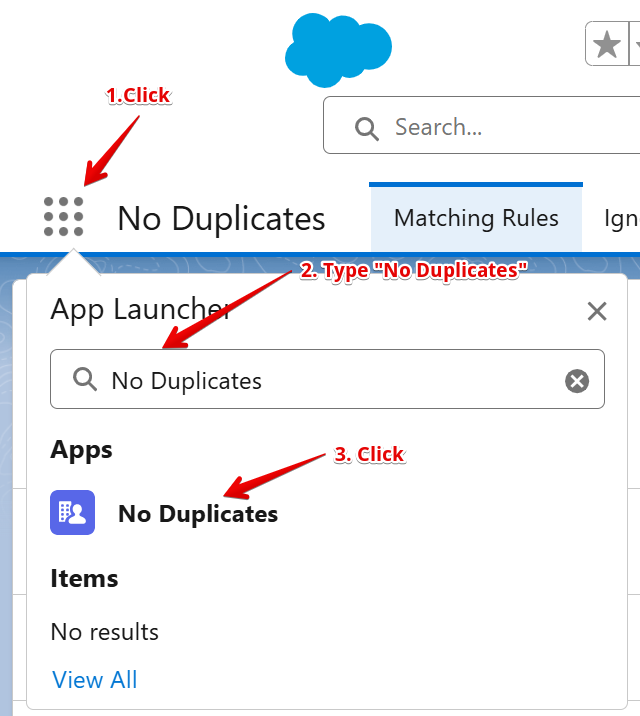
- Click on it to open the app
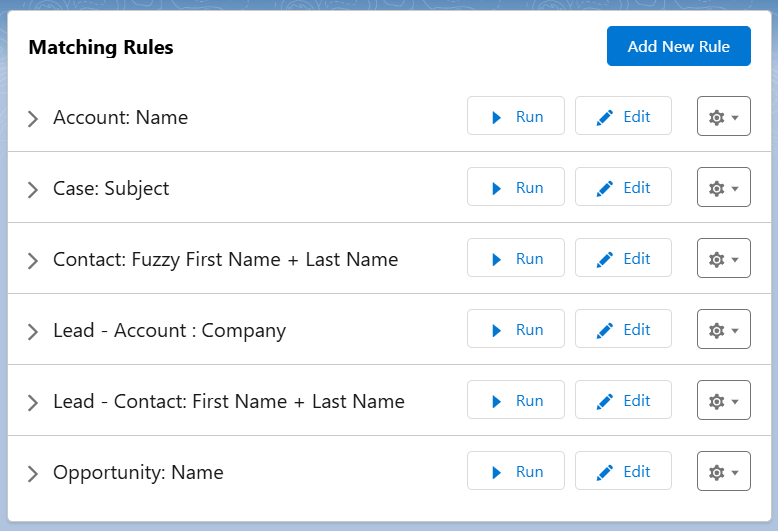
- The "Matching Rules" tab will be displayed by default
Classic Experience
- Find the "No Duplicates" app in the Apps menu (top-right corner)
- Click on it to open the app
- The "Matching Rules" tab will be opened by default
Using Predefined Matching Rules
The app comes with predefined matching rules that are ready to use:
- Run a rule: Click the "Run" button to start processing records with that matching rule
- Edit a rule: Click the "Edit" button to modify an existing matching rule. The edit page also includes Matching Rule Settings — additional configuration for Additional Fields and Reparenting
Viewing Error Messages
If a matching rule fails during execution:
- Look for an arrow icon (▼) next to the matching rule
- Click the arrow icon to expand and view the error message
- Review the error details to troubleshoot the issue
Creating a New Matching Rule
To create a new matching rule:
- Click the "Add New Rule" button on the Matching Rules tab
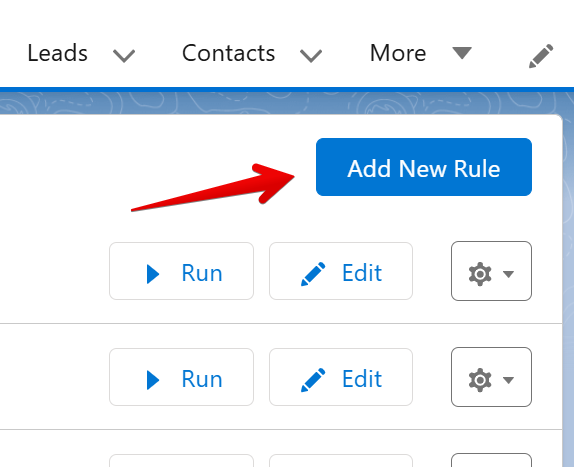
- You will be navigated to the first step of the New Matching Rule Wizard
The wizard will guide you through:
- Matching Rules configuration (this page)
- Matching Fields selection
- Matching Filters configuration (optional)
- Merge and Convert execution
note
Next Steps: After creating a matching rule, proceed to configure Matching Fields to define which fields are used for duplicate detection.