Reports
The app provides comprehensive reporting capabilities to help you track and analyze duplicate records. Reports are available in CSV format for easy analysis in spreadsheet applications.
Report Types
The app provides two types of reports:
Current Duplicates
Shows existing duplicates that have not yet been merged. Use this report to:
- Review pending duplicate records
- Analyze duplicate patterns
- Plan manual merge operations
Merged Duplicates
Shows duplicates that have already been merged. Use this report to:
- Track merge history
- Audit merge operations
- Review merge results
Downloading a Report
Reports can be downloaded directly from the duplicate results page. Here's how to generate and download a report:
-
Navigate to the Duplicate Results Page – After running a matching rule, click the "Show Results" button to view detected duplicates
-
Click the Download button – Located on the duplicate report page, this button opens the report configuration dialog

-
Select the Report Type – In the pop-up window, choose either:
- Current Duplicates – Shows duplicates that haven't been merged yet
- Merged Duplicates – Shows duplicates that have already been merged (requires date range selection)
-
Choose Fields to Include – Use the multi-select picklist to select the fields you want to include in the report
- Fields in the report will appear in the same order as selected in the picklist
- Select only the fields you need to keep the report focused and manageable
- You can select both Object and Cross-Object fields
-
Click the Download button – The report will be generated and downloaded as a CSV file
-
Wait for Report Generation – Report generation may take a while depending on the amount of data. Larger datasets will take longer to process

Best Practice: For large datasets, select only the most important fields to reduce report generation time and file size.
Merged Duplicates Report
The Merged Duplicates report provides detailed information about duplicates that have been merged. Here are some key features:
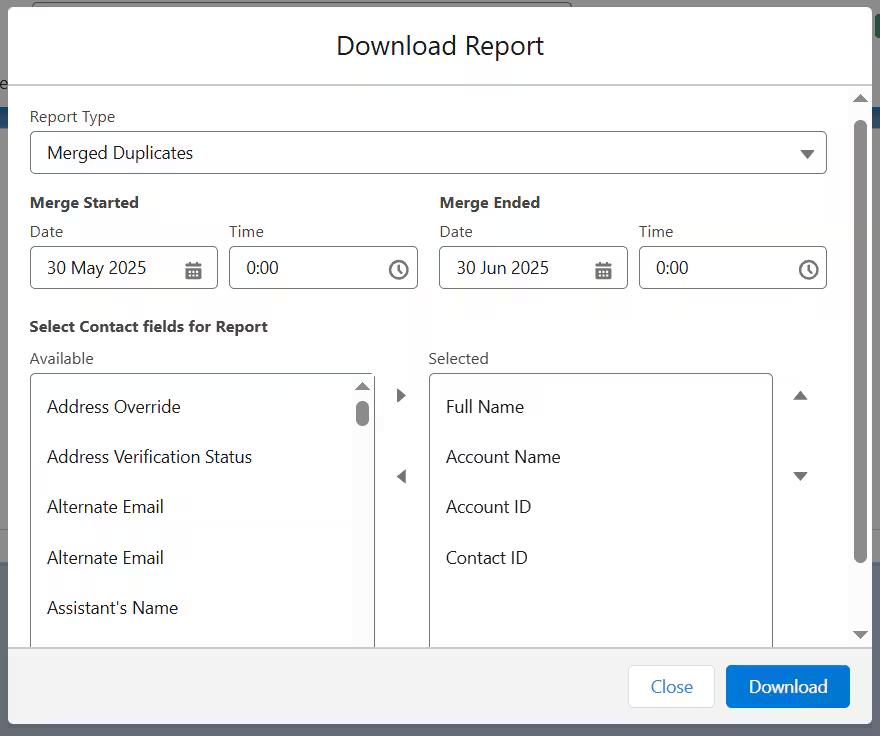
Date Range Selection
You can specify a date range to view merged duplicates within that period. This helps you:
- Review merges from a specific time frame
- Track merge activity over time
- Generate periodic reports
Data Retention
Post-Merge reports are stored for the last full 3 months, ensuring access to recent merge activity. Older reports may not be available.
Detailed Record Information
The report shows:
- Field values for duplicate records before the merge operation
- Master record information before and after the merge
- Changes made during the merge process
This helps you understand exactly what happened during each merge operation.
Notifications and Auto-Merge Reporting
When a matching rule is scheduled and the auto-merge feature is enabled, users receive email notifications about the merge results.
Notification Email
Users receive an email notification with the following details:
- Number of duplicates found – Total number of duplicate groups detected
- Number of duplicates merged – Total number of records that were successfully merged
- Number of errors encountered (if any) – Any issues that occurred during the merge process
- Name of the matching rule – Which matching rule triggered the action
Direct Download Link
The notification email includes a direct link to download the merged duplicates report. This makes it easy to review the auto-merge results without logging into the app. Simply click the link in the email to download the CSV report.
Email Settings: Make sure email notifications are enabled in your Scheduling configuration to receive these notifications.