Scheduling
You can schedule matching rules to run automatically at specified intervals. This allows for continuous duplicate detection and merging without manual intervention.
Setting Up a Schedule
To schedule a matching rule:
- Click the gear icon on the right side of the rule
- Select "Automate" from the menu
- Configure your scheduling options
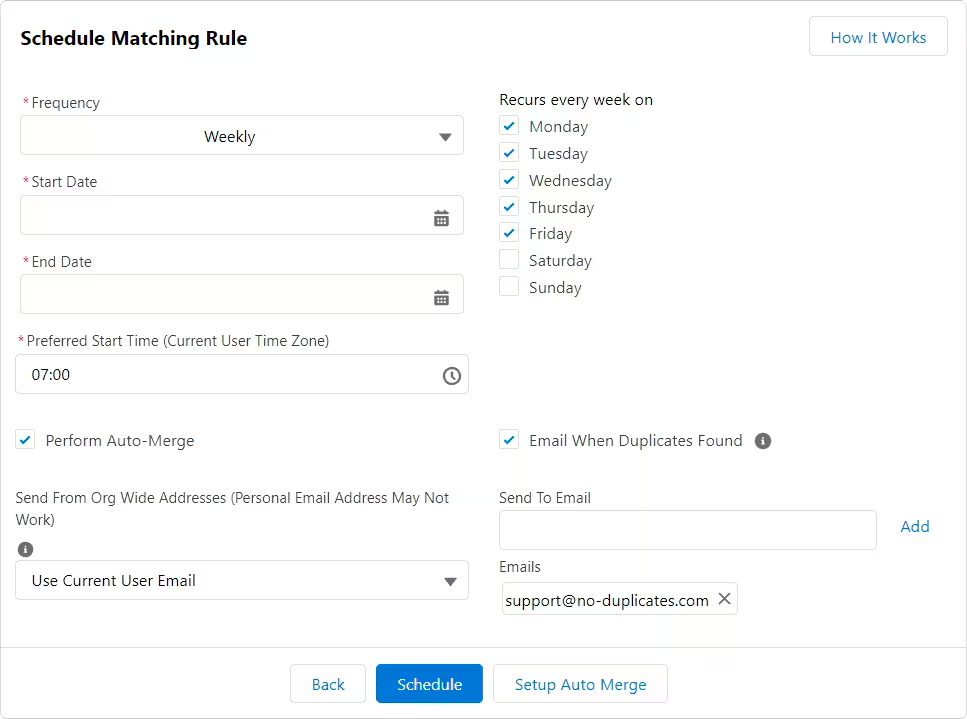
- Click Schedule to activate
Frequency Options
Weekly
The rule runs on specific days each week:
- Select one or more days from Monday to Sunday
- The rule will execute on all selected days at the specified time
Monthly
The rule runs once per month with these options:
- On a specific date: e.g., the 15th of each month
- On a particular weekday: e.g., the first Monday of each month
Custom
For advanced scheduling, enter a cron expression in the format:
[Seconds] [Minutes] [Hours] [Day_of_Month] [Month] [Day_of_Week]
Cron Expression Examples
-
Run each odd hour (1 AM, 3 AM, 5 AM, ..., 11 PM):
0 0 1,3,5,7,9,11,13,15,17,19,21,23 * * ? -
Run each even hour (0, 2, 4, ..., 22):
0 0 0,2,4,6,8,10,12,14,16,18,20,22 * * ? -
Run every hour at :30 (00:30, 01:30, 02:30, ..., 23:30):
0 30 * * * ? -
Run every 2 hours at :30 (00:30, 02:30, 04:30, ..., 22:30):
0 30 0/2 * * ?
Make sure each job execution completes before the next scheduled run. If a batch doesn't finish within one hour, use a 2-hour interval instead.
Schedule Configuration
Start Date
The date when the scheduled rule will begin running.
End Date
The date when the scheduled rule will stop running. Leave empty for continuous scheduling.
Preferred Start Time
The time of day (in your time zone) when the rule should execute.
Additional Options
Perform Auto-Merge
When enabled, automatically merge duplicates when the rule runs. This eliminates the need for manual review and merging.
Email When Duplicates Found
Send emails only if duplicates are detected. If no duplicates are found, no email will be sent.
Send To Email
Email address to receive notifications about duplicate detection results.
Activating and Deactivating Schedules
To Activate a Schedule
- Configure your desired frequency and options
- Click the blue Schedule button to save and activate
To Deactivate a Schedule
- Click the red Stop Schedule button
- The schedule will be deactivated immediately
Editing a Schedule: Configuration fields are disabled while a schedule is active. To modify settings, first deactivate the schedule, make your changes, then reactivate it.
Important Notes
DMARC Compliance: DMARC-compliant email servers may reject emails with @example.com in the "from" address when such emails do not originate from Example's mail servers.
Email Behavior: When "Email When Duplicates Found" is checked, emails are sent only if there are duplicates. If no duplicates are found, nothing happens.
Results Overwrite: The scheduler will run the matching rule at the specified time and it will remove the results of the previous scanning. Previous duplicate results will be replaced with new results.