Ad Hoc Search
Ad Hoc Search lets you find records and merge them on the spot, without creating a matching rule first — useful for one-off cleanups when you already know which records to merge.
Accessing Ad Hoc Search
Open the No Duplicates app and select the Ad Hoc Search tab.
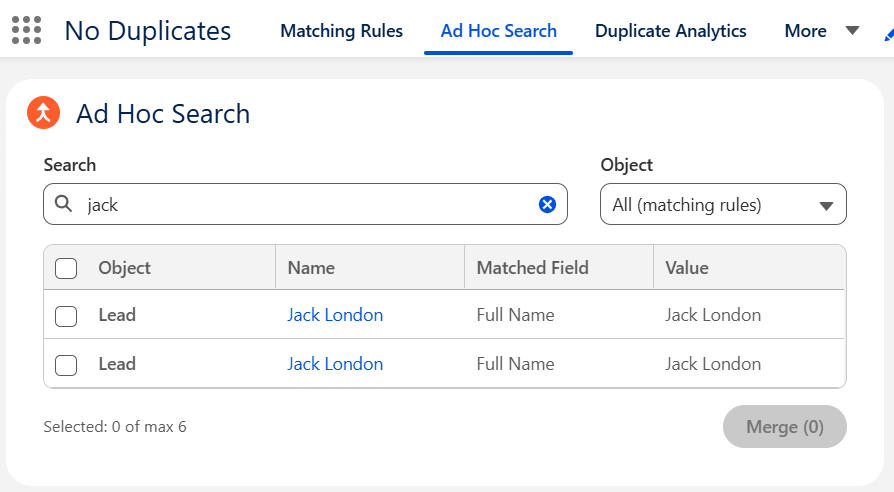
Searching for Records
- Pick a scope in the object dropdown: All (matching rules) searches every object that has a matching rule, or select a specific object to narrow results.
- Type at least 2 characters in the search box. Results load as you type.
You can search by name, email, phone, or any other text field on the record.
Paste a valid Salesforce record ID into the search box to jump straight to that record.
With All (matching rules) selected, the results table shows the Object, Name, Matched Field, and its Value so you can confirm why each record was returned. For a specific object, the table shows that object's key fields instead.
Newly created records may take a moment to appear while Salesforce indexes them.
Selecting and Merging
- Select up to 6 records.
- Click Merge.
- The merge popup opens. Choose the master record and the value to keep for each field, then confirm.
Selected records stay pinned to the top of the table as you refine the search.
Cross-Object Merge
Ad Hoc Search can also merge records of two different objects:
- Lead + Account
- Lead + Contact
Select records from both objects (with All (matching rules) as the scope) and click Merge. The Account or Contact becomes the master record. Other combinations are not supported and show a warning.
Considerations
- Merge history: Ad hoc merges are not saved to the merge history.