Merge Requests
Merge Requests let users who aren't allowed to merge or delete records prepare a merge and hand it to an admin to finish. You pick the master record and the field values you want, then send that choice to a separate For Review tab, where an admin can complete it.
This helps in two cases:
- A user who can review duplicates but isn't allowed to merge them chooses the master and fields, then sends the request to an admin to complete.
- An admin wants to prepare a merge now and finish it later, or have someone else check it first.
Merge Requests work for single-object duplicate groups only. They are not available for cross-object groups.
Requesting a merge
If you can open the merge window but aren't allowed to merge records, the footer shows a Request Merge button instead of Merge.
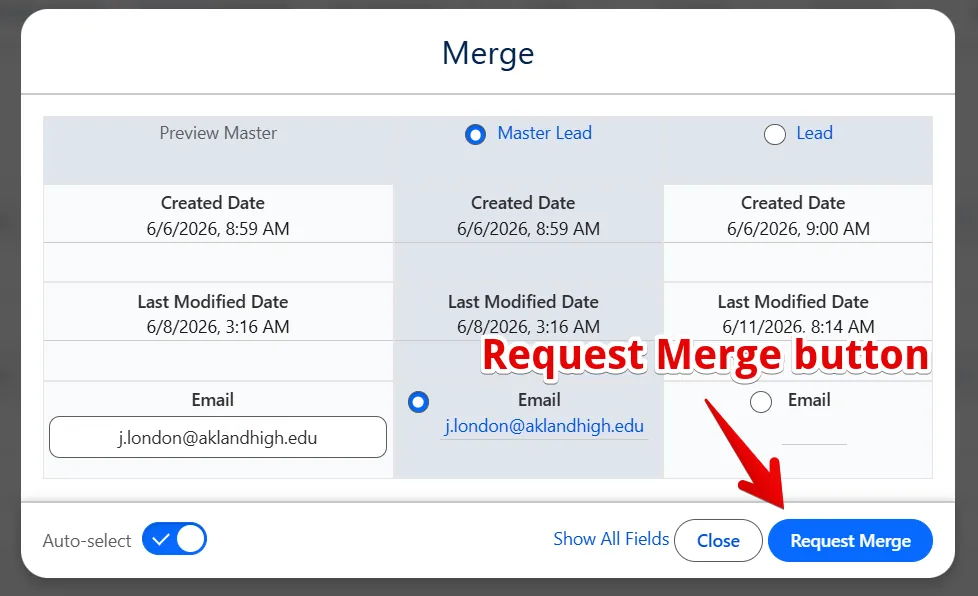
- Open Merge Preview for a duplicate group.
- Choose the master record and the field values you want, just like a normal merge.
- Click Request Merge.
Your choice is saved and the group moves to the For Review tab.
Nothing is merged yet — the records stay unchanged until a reviewer completes the request.
Saving a merge for review
If you are allowed to merge, the main button is a split button: Merge with a Save for Review option in the dropdown menu.
- Merge — merges the records right away, as usual.
- Save for Review — saves your choice to the For Review tab without merging.
Use Save for Review when you want to set up the merge now and finish it later, or have someone else check your choice first.
The For Review tab
When there are saved requests, a For Review tab appears next to Current Duplicates on the duplicate results page, with the number of pending requests shown in the label.
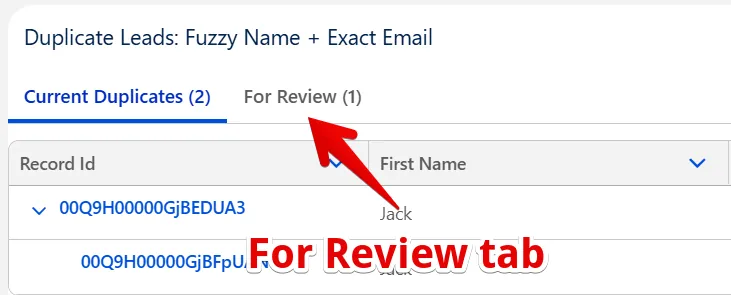
- Groups saved for review leave Current Duplicates and move to For Review, so they aren't handled twice.
- Auto Merge is hidden on the For Review tab — these groups are merged from their saved choice, not by the auto-merge job.
- Use Show More to load more requests.
You can still mark groups as Not Duplicates (temporarily or permanently) directly from the For Review tab.
Reviewing and completing a request
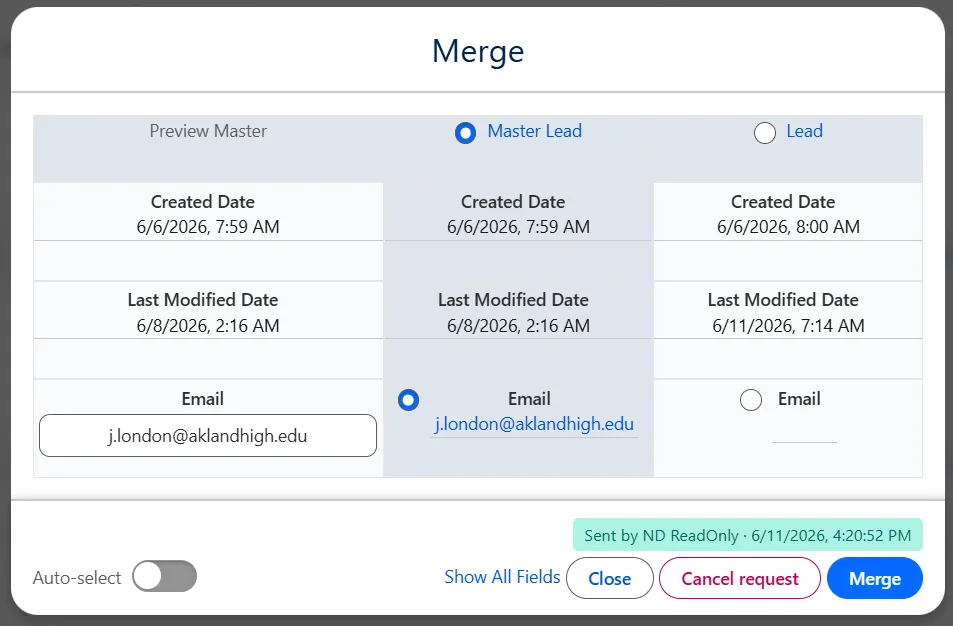
Open Merge Preview on a group in the For Review tab to review it:
- The merge window opens with the requester's saved choice already filled in — the master record and field values are pre-selected and highlighted, exactly as they were chosen.
- A banner shows who sent the request and when (Sent by [name] · [date]).
- Change the selection if needed, then click Merge to complete it.
Cancelling a request
To send a group back to Current Duplicates without merging, click Cancel merge request in the window. The saved choice is cleared and the group returns to Current Duplicates for normal processing.
Related Topics
- Merge And Convert — run a matching rule and merge duplicates
- Auto-Select — pre-fill the merge window with recommended values
- Auto Merge — merge automatically without manual review